Help Center Pricing Open App
5-minute setup

Getting Started with Nythor

Go from signup to your first invoice in under 5 minutes. This guide walks you through everything you need to start getting paid faster.

1

Complete Your Business Profile

Add your business details for professional invoices

Your business profile appears on every invoice you send. Take a moment to set it up so your invoices look professional from day one.

Go to Account in the app and fill in:

  • Business name - How clients know you
  • Logo - Upload a light and dark version
  • Contact info - Email, phone, website
  • Default currency - USD, EUR, GBP, etc.
Pro Tip

You can also add a custom footer text that appears on all invoices - great for payment terms or thank you messages.

2

Add Your First Client

Start building your client list

Navigate to Clients and tap + New. Enter their:

  • Name - Company or individual name
  • Email - Where invoices get sent
  • Phone & Address - Optional but helpful

Each client gets their own profile with activity timeline, invoice history, and health score based on payment behavior.

Client detail page showing health score, lifetime value, and invoice history
Client profile with health score, lifetime value, and payment history
3

Create Your First Invoice

Send professional invoices in seconds

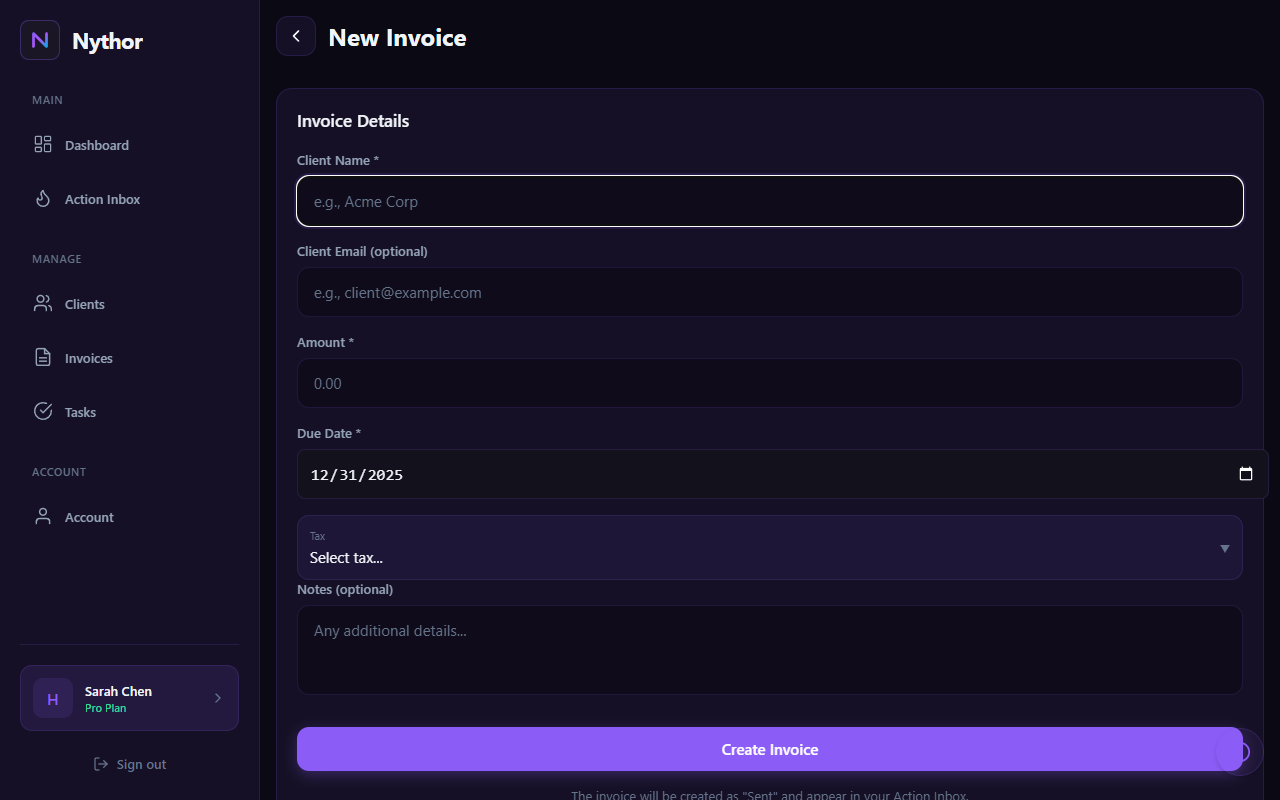
Go to Invoices and tap + New. Fill in:

  • Client - Select from your list or add a new one
  • Amount - Your total (tax calculated automatically)
  • Due date - When payment is expected
  • Notes - Optional description or terms
Invoice creation form with client, amount, and due date fields
Creating a new invoice takes just seconds

Tap Create Invoice and it's sent directly to your client's email. They'll receive a professional invoice with your branding.

4

Master the Action Inbox

Your command center for what needs attention

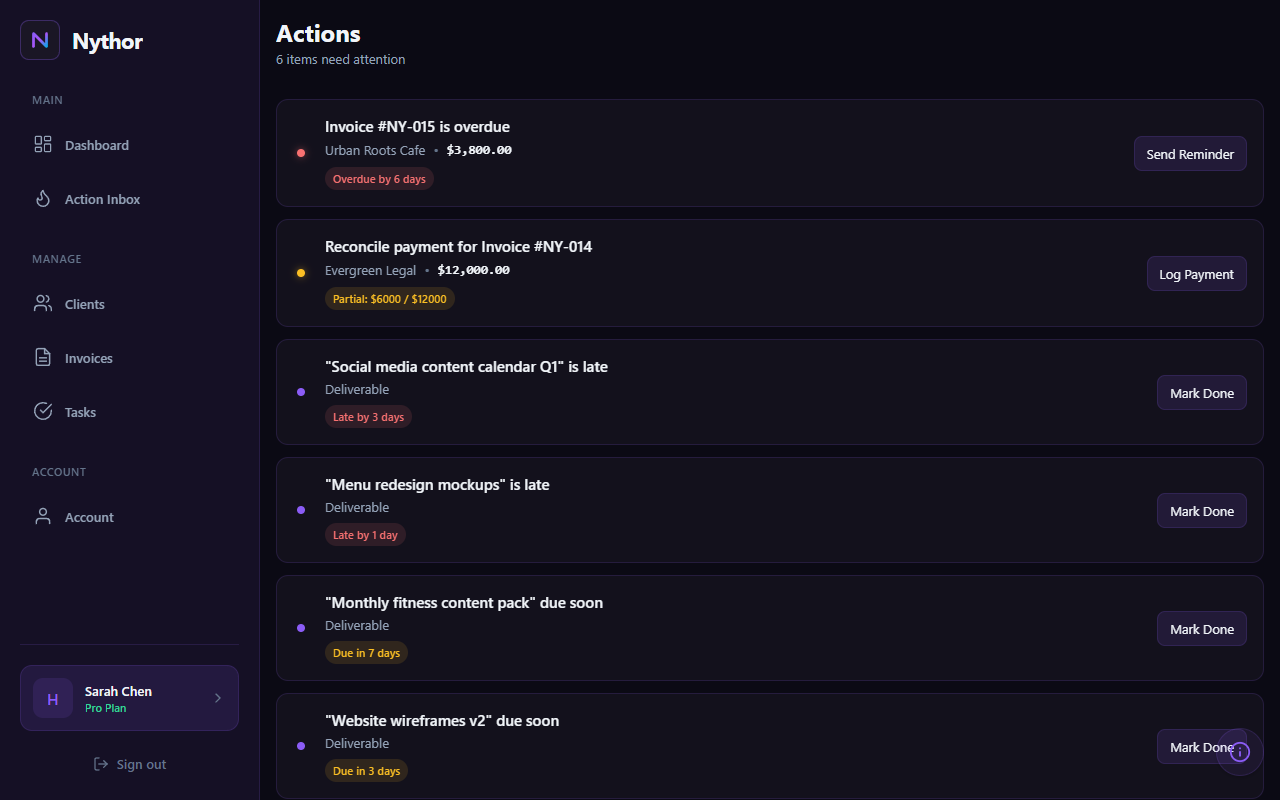
The Action Inbox automatically surfaces everything that needs your attention:

  • Overdue invoices - Payments past their due date
  • Due soon - Invoices due in the next few days
  • Partial payments - Invoices needing reconciliation
  • Late deliverables - Tasks past their deadline
Action Inbox showing prioritized list of items needing attention
Action Inbox prioritizes what matters most

Items are automatically prioritized by urgency. Check your Action Inbox daily to stay on top of your business.

5

Track Deliverables

Never miss a deadline again

Use Tasks to track deliverables and deadlines. Each task can be linked to a client so everything stays organized.

Deliverables page showing tasks with due dates and status
Track all your deliverables in one place

Overdue or due-soon tasks automatically appear in your Action Inbox, so nothing slips through the cracks.

6

Set Up Payment Reminders

Automate follow-ups on unpaid invoices

Stop chasing payments manually. Go to Account > Notifications to configure automatic reminders:

  • Pre-due reminders - Gentle nudge before the due date
  • Due day reminder - Sent on the due date
  • Overdue reminders - Escalating reminders after the due date
Free vs Paid Plans

Free plan users can send manual reminders anytime. Paid plans get automatic reminders sent at your configured schedule.